

Convert HEIC to JPG on Mac
Drop a folder of HEIC or HEIF photos into Image-Batch, open the Convert tab, set Convert to JPEG, and click Convert. The JPEG copies are saved in a new folder on your Mac.
-
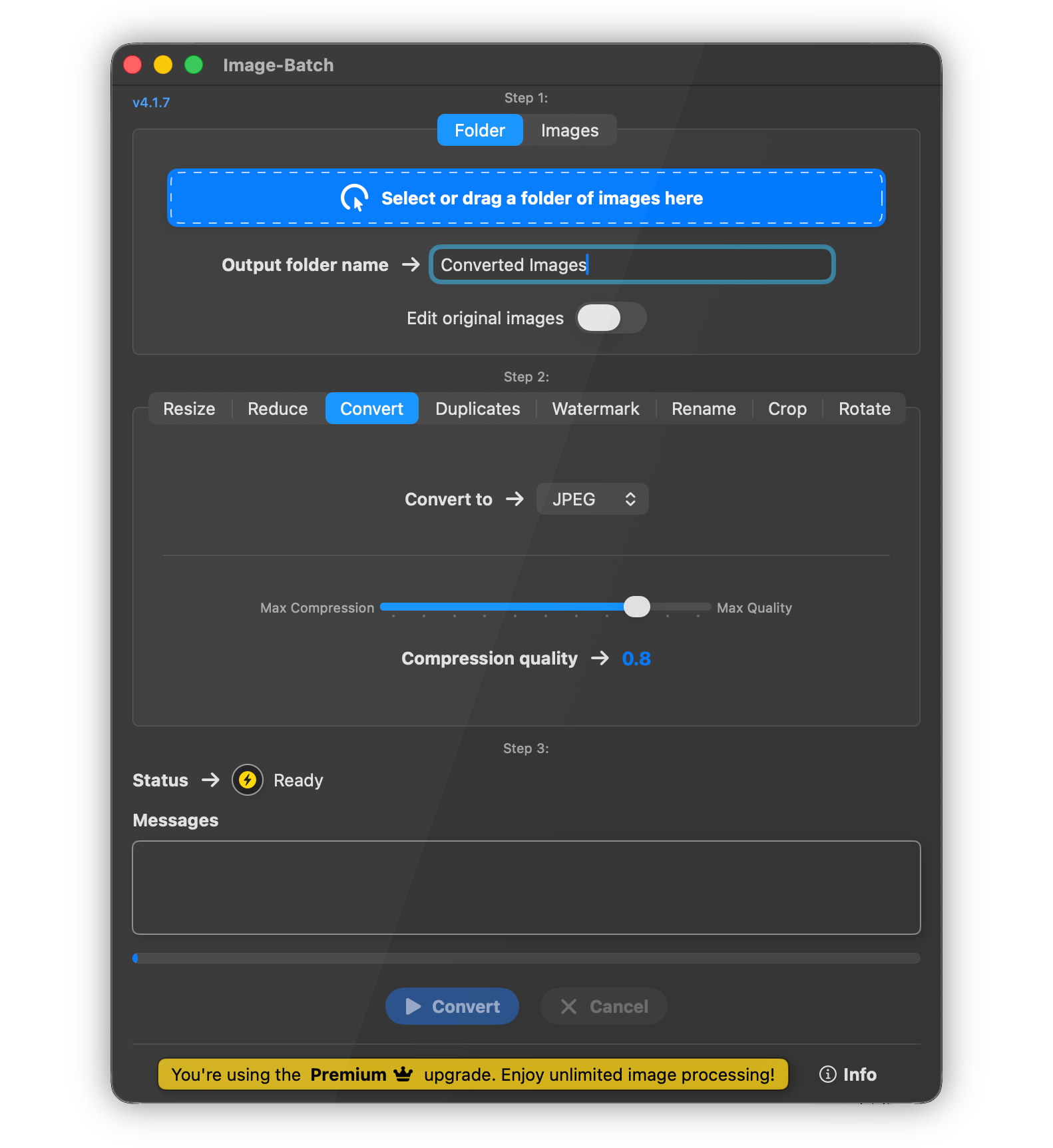
Open Image-Batch. In Step 1, leave Folder selected, then select or drag a folder of images. Edited copies go into a new folder named Converted Images inside that folder.
-
In Step 2, open the Convert tab and set Convert to JPEG. Lite includes JPEG. Pro and Premium can also use the Compression quality slider, and can convert to PNG, TIFF, or HEIF. Premium also adds WEBP and AVIF.
-
In Step 3, click Convert. When Status says Conversion Complete, you can click View Images to open the Converted Images folder.
Tips
- iPhone photos are often saved as HEIC. This is a simple way to make JPEGs that are easy to share, and the files never leave your Mac.
- Your original photos stay untouched, and copies go into a new folder, unless you turn on Edit original images (Pro and Premium), which writes the new file in the original folder and removes the original.