
Find duplicate photos on Mac
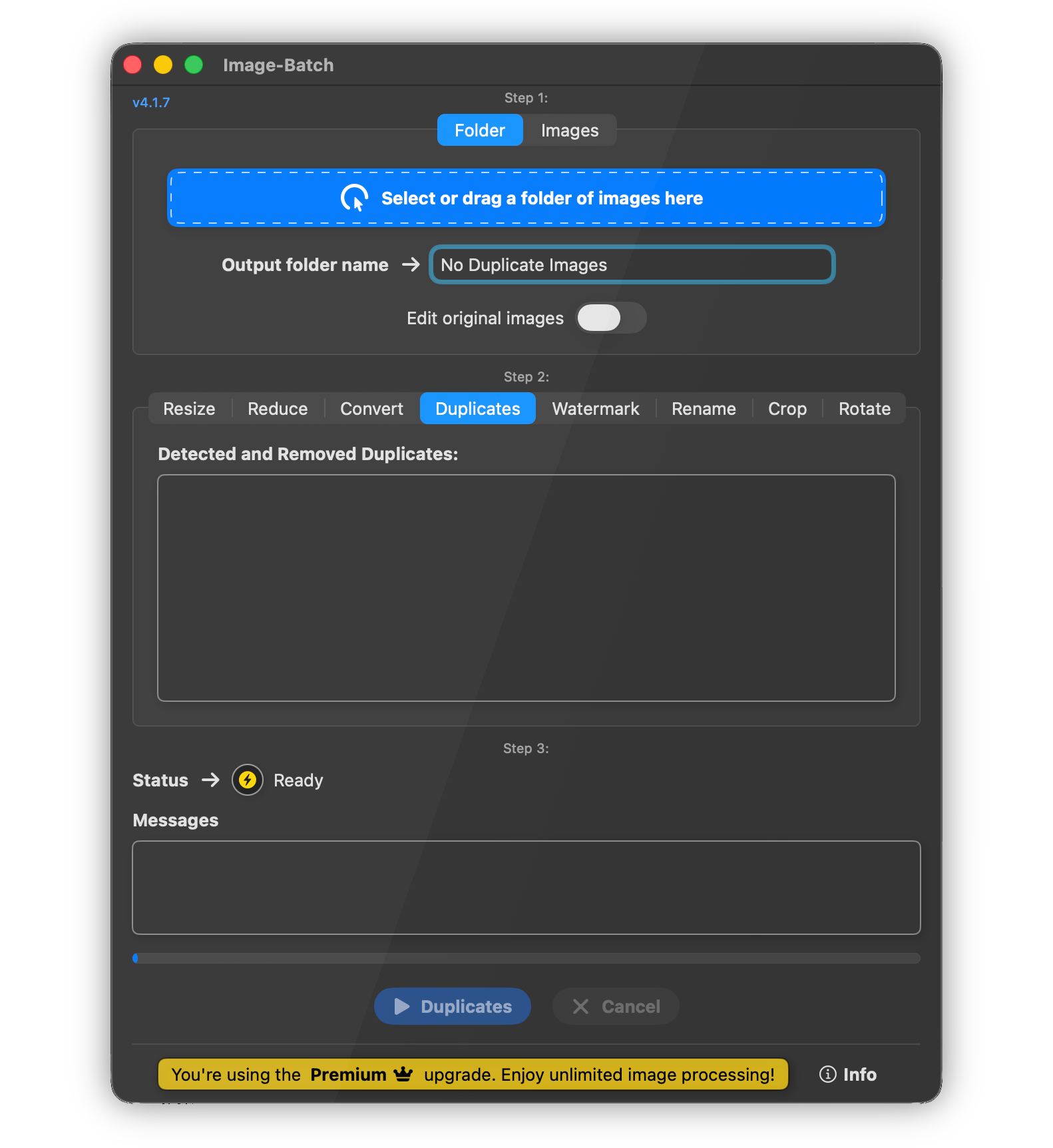
Open the Duplicates tab in Image-Batch, select a folder, and click Duplicates. Unique photos are saved in a No Duplicate Images folder. The originals in your selected folder are left as they are, unless you turn on Edit original images.
-
Open Image-Batch. In Step 1, leave Folder selected, then select or drag a folder of images. Edited copies go into a new folder named No Duplicate Images inside that folder.
-
In Step 2, open the Duplicates tab. There are no extra options. Leave Edit original images off if you want Image-Batch to copy the unique files into No Duplicate Images and leave your original folder unchanged.
-
In Step 3, click Duplicates. Status will show Analyzing image… and then Duplicate Removal Complete. Click View Images to open the No Duplicate Images folder. Any duplicates found are listed on the Duplicates tab under Detected and Removed Duplicates.
Tips
- If you turn on Edit original images (Pro and Premium), duplicate files are deleted from the original folder. Leave this off unless you are sure you want that.
- Image-Batch compares the image data, so two files with different names can still be flagged as duplicates if the photos themselves match.