

Batch rename photos on Mac
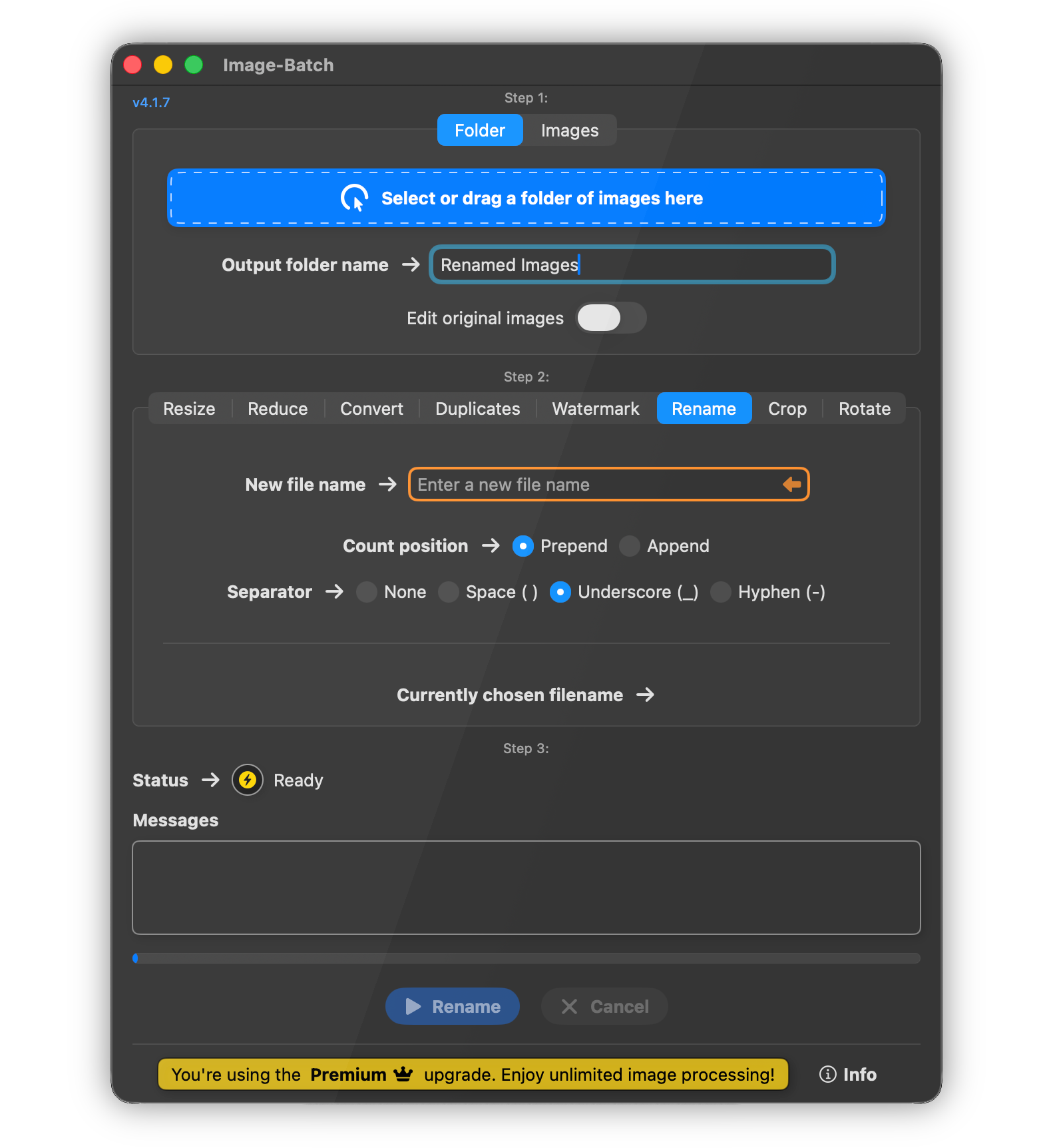
Open the Rename tab, type a New file name, and click Rename. The renamed copies go into a Renamed Images folder.
-
Open Image-Batch. In Step 1, leave Folder selected, then select or drag a folder of images. Edited copies go into a new folder named Renamed Images inside that folder.
-
In Step 2, open the Rename tab and type a New file name. Lite adds a number at the start of the name, separated by an underscore (for example, 1_vacation.jpg). Pro and Premium can set Count position to Prepend or Append, and Separator to None, Space ( ), Underscore (_), or Hyphen (-). A preview shows the Currently chosen filename.
-
In Step 3, click Rename. When Status says Renaming Complete, you can click View Images to open the Renamed Images folder.
Tips
- Image-Batch keeps the original file type and only changes the name.
- If you turn on Edit original images (Pro and Premium), the files are renamed in place. Leave it off if you also want to keep the original names.